
On this page
Sweet for ArcGIS is available for field workflows using the Sweet for ArcGIS tablet app. If you will be working in a disconnected environment, before Sweet can be taken offline it must be configured for offline use.
See Sweet for ArcGIS system requirements for supported environments.
Windows
Sweet for ArcGIS’s offline application is supported on Windows tablets.
- Search Sweet for ArcGIS in the Microsoft Store.
- Choose Get.
- Once the app is installed on the device, login using an ArcGIS Named User.
If access to the Microsoft Store is restricted, Sweet for ArcGIS can be downloaded from apps-licensing.esriuk.com/downloads/sweet-offline-windows.
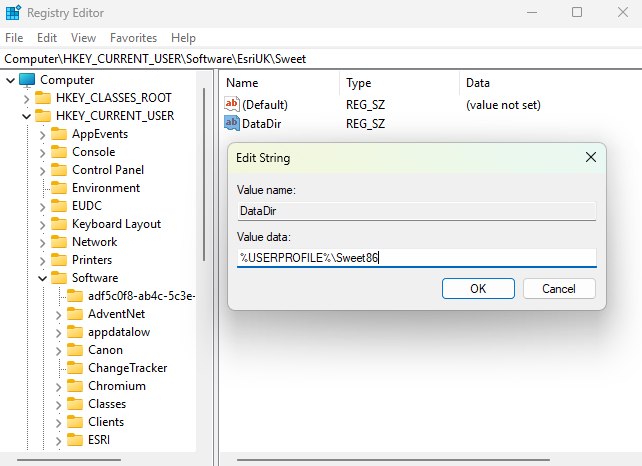
A registry key is available for the Sweet Windows application to allow control over where application settings and offline data are stored. By default, the storage location is managed by Windows and, depending on system security policies, may not be accessible to all users. The registry key provides an option to store this data in a fixed, user-defined location that can be accessed consistently.
To change the folder used by Sweet, create a String registry value named DataDir at the following location:
Computer\HKEY_CURRENT_USER\Software\EsriUK\Sweet
Setting the Value data to the full path of the desired storage location.
iOS
Sweet for ArcGIS’s offline application is supported on iOS tablets.
- Search Sweet for ArcGIS in the iOS App Store.
- Choose Get.
- Once the app is installed on the device, login using an ArcGIS Named User.
Android
Sweet for ArcGIS’s offline application is supported on Android tablets.
- Search Sweet for ArcGIS in Google Play.
- Choose Install.
- Once the app is installed on the device, login using an ArcGIS Named User.